01 / Doctor
Find a suitable time
Doctors can see available time in both rooms, choose a duration and procedure, and leave preparation notes. If plans change, they can move or cancel their upcoming booking.
A tool for a clinical team / 2026
Booking for operating
rooms 546 and 506.
The doctor books a time for a procedure.
The nurse knows what to prepare for.
Actual interface.
Demonstration bookings.
01 / The task
A doctor needs an hour for a procedure. The nurse needs to know who is coming and when the room will be free. They look at the same schedule with different questions.
The team originally used a shared Google spreadsheet. It could hold a booking, but early and late procedures needed approval. Preparation notes and staff access needed a place too.
I started with Room 546: a calendar for doctors and a daily plan for the nurse. Approval requests and schedule controls followed. By the time Room 506 was needed, the team already knew the service.
02 / The team
01 / Doctor
Doctors can see available time in both rooms, choose a duration and procedure, and leave preparation notes. If plans change, they can move or cancel their upcoming booking.
02 / Nurse
The nurse has the day in one list, without piecing it together from calendar entries. She can approve additional time and book a room for a doctor herself.
03 / Administrator
The administrator invites staff and sets room availability. Part of a day in 506 can be closed without affecting 546.
03 / Interface
Explore the month view, booking form and nurse’s daily plan. Open any screenshot for a closer look.
The month view makes open days and busy stretches easy to spot. For a ninety-minute procedure, the panel on the right finds slots long enough to fit.
Each procedure fills its own stretch of the day, labelled with the doctor and category. Select around 15:00 in the month view and the day opens near that time, without scrolling down from the morning.
Common durations have their own buttons. Below them are the procedure category and a note for the nurse. Nurses and administrators can also choose which doctor they are booking for.
Requests sit apart from confirmed procedures. The nurse can see who needs additional time and in which room. While a decision is pending, nobody else can take that slot.
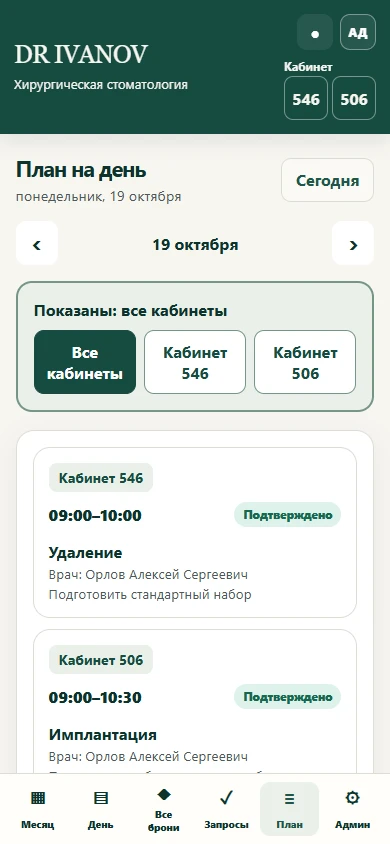
The plan lists the selected day’s bookings in order, with the doctor, room, procedure and note. It can show both rooms together or just one.
When a room is unavailable, the administrator selects the date and closes the relevant hours. Existing bookings cannot simply disappear under a new restriction; they have to be resolved first.
These screenshots show the actual interface with fictional names and bookings. The team’s live schedule remains private.
04 / Booking
Choose 546 or 506. The calendar shows that room’s bookings.
Select a 60-minute duration and choose an available slot.
Add the procedure category and any preparation notes.
When saving, the service checks that nobody else has just booked the same time.
The booking appears in the schedule. If approval is needed, the nurse receives a request.
05 / Approvals
An empty room is not always ready to book. Early mornings, evenings and weekends need the nurse’s approval.
Those hours are marked in lilac. The doctor submits a request and the slot is held pending a decision. A nurse or administrator then approves or declines it.
Each room has its own rules. The hours currently match; 506 can be adjusted later to fit its nurse’s schedule.
06 / On mobile
The first version of the daily plan showed when a procedure started. In use, the nurse also needed the booking’s end time and the doctor’s name.
I put both in the card alongside the procedure and note. There is no need to open each booking to see who is coming next and how long they have reserved.
The phone has the same working view. The service can be added to the home screen and opened from its own icon, without hunting for a browser tab.
07 / Evolution
After launch, a second room was added. The doctors and nurses were the same, so asking them to use another set of accounts made little sense.
Two buttons in the header, 546 and 506, switch the schedule. The daily plan and requests can show both rooms together, with a visible room label on each booking and a filter above the list.
SeparateAvailability and restrictions. Closing 506 does not block 546.
SharedStaff accounts, the combined daily plan and the approval queue.
The team’s rulesA doctor can hold overlapping bookings in different rooms. Conflicts within the same room are blocked.
08 / Refinements after launch
Extractions were originally green. So was free time, which made a booking blend into the background. I changed extractions to blue throughout the service, including the category selector. The calendar became easier to read.
Selecting 15:00 in the month view used to open the day at eight in the morning. Now it opens near the selected time, saving that extra scroll.
When the main DR IVANOV website was ready, I brought its wordmark, dark green and warm off-white into the service. Removing the large header image also left more space for the schedule.
The administrator books for one doctor most of the time. That doctor used to require a fresh selection on every booking. Now he is selected by default, while the others remain available in the list.
09 / Under the hood
While a doctor fills in the form, a colleague might book that slot. The service checks the schedule again when saving. Two overlapping bookings in the same room cannot both be accepted, even if submitted almost simultaneously.
Each staff member has an account and permissions. Doctors manage their own bookings, nurses can book for colleagues, and the administrator controls access. The service records who created and approved a booking, and backs up the database before updates.
The service handles rooms and schedules. Medical records are kept elsewhere.
Your project